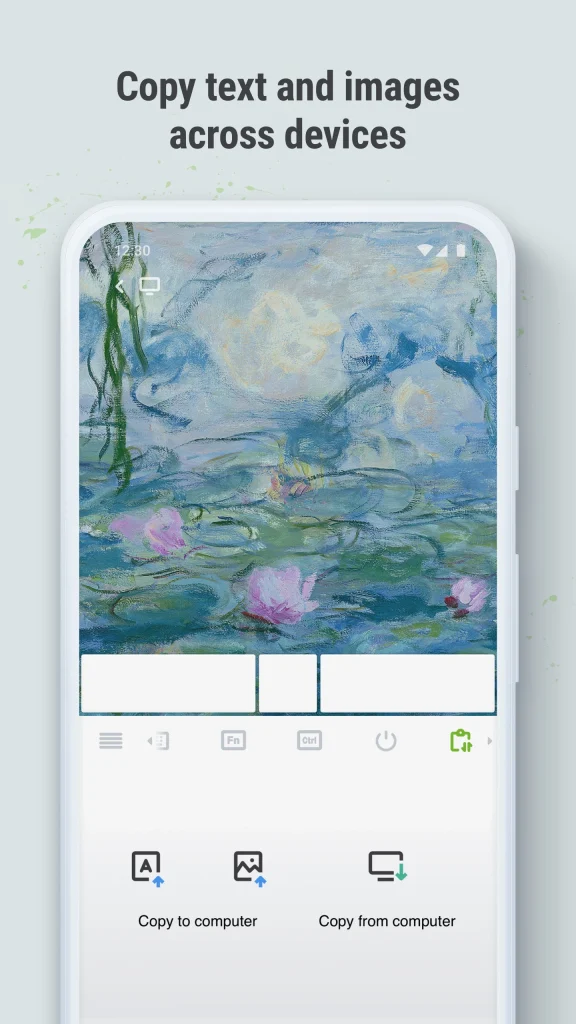
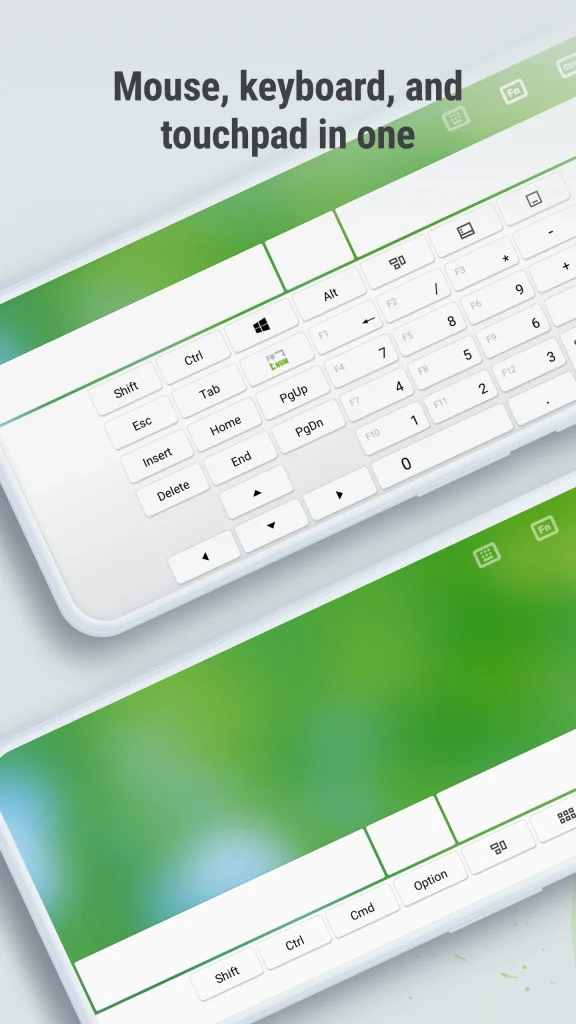
A broken mouse or an inconvenient seating position can make controlling your computer frustrating. The Remote Mouse Pro APK offers a practical alternative by turning your smartphone or tablet into a wireless mouse, keyboard and touchpad. Instead of relying on traditional computer accessories, you can control basic desktop functions directly from your mobile device.
Whether you’re giving a presentation, watching movies from your couch or working with a laptop, Remote Mouse provides flexible computer control without requiring additional hardware.
Remote Mouse App: Turn Your Phone Into a Wireless Mouse
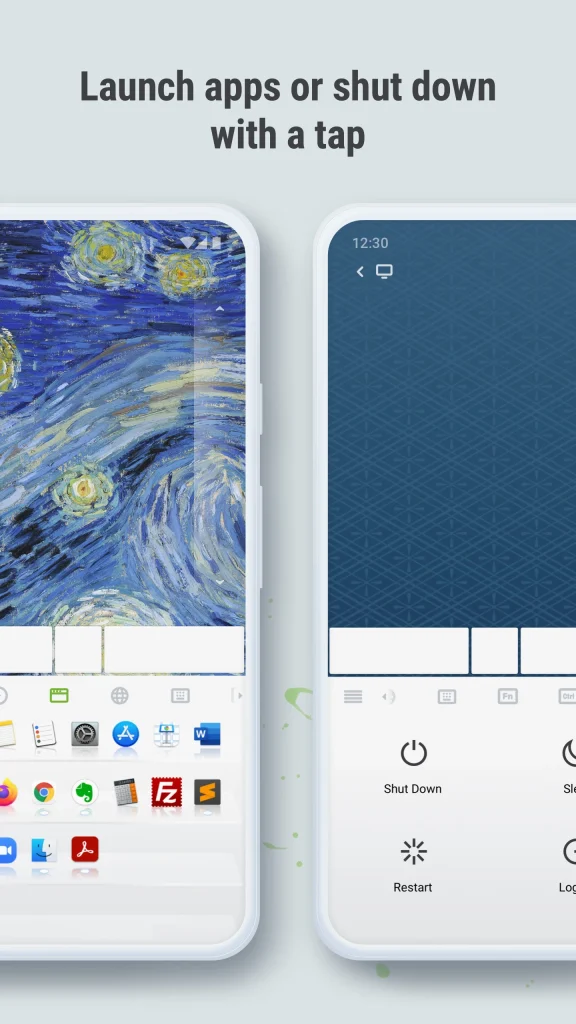
Remote Mouse is a remote control application that lets Android and iOS devices operate Windows, Mac and supported Linux computers. It connects your phone to a desktop companion program, allowing both devices to communicate over a local network.
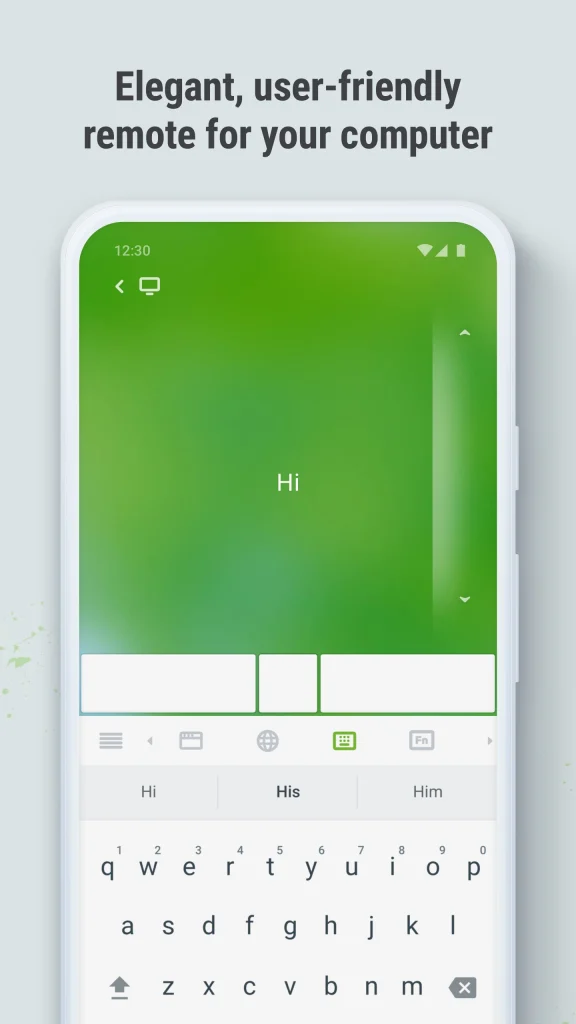
Once connected, your phone screen functions like a laptop touchpad. You can move the cursor, click, scroll and enter text using familiar touchscreen gestures. The application also offers additional controls designed for media playback, presentations and everyday computer navigation.
Unlike conventional wireless mice that require dedicated accessories, Remote Mouse uses a device you probably already carry.
Key Features That Make Remote Mouse Useful
The application offers more than basic pointer movement. Its combination of touch controls and computer shortcuts makes it suitable for different situations.
Wireless Touchpad and Mouse Controls
The virtual touchpad supports common mouse operations, including left-clicking, right-clicking, scrolling and dragging items. Users can move the cursor by sliding a finger across their phone screen.
Gesture controls make everyday tasks such as browsing websites, opening folders and navigating documents feel familiar. However, precision may differ from a physical mouse, particularly during detailed design work.
Remote Keyboard and Text Input
Typing on your computer becomes possible through your smartphone’s keyboard. This feature is particularly convenient when entering search queries, website addresses or short messages from a distance.
Depending on your device and operating system, the application may also support additional keyboard functions. Availability can vary between platforms and app versions.
Media and Presentation Controls
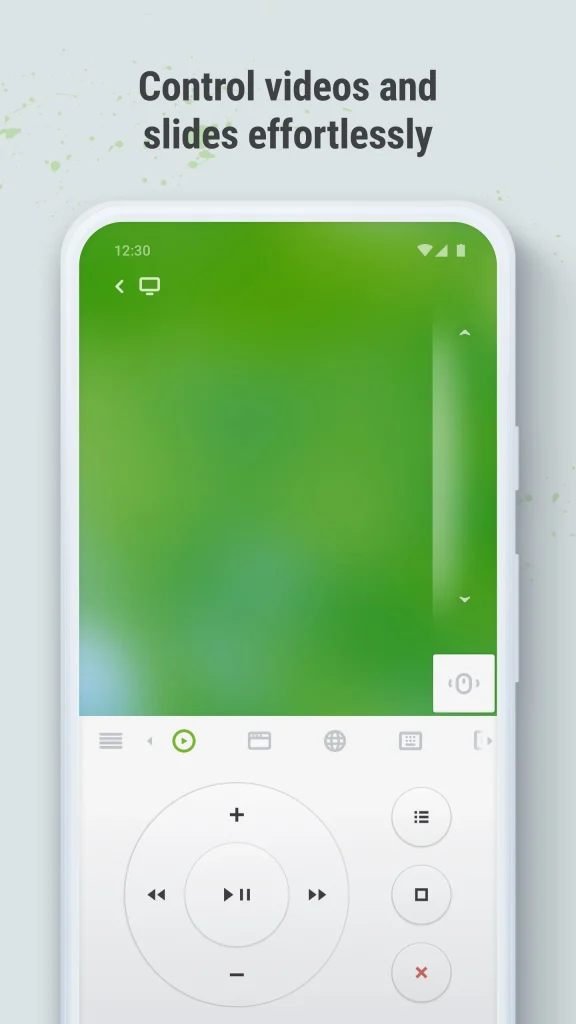
Remote Mouse includes controls intended for managing multimedia and presentations. These can help when playing videos, adjusting playback or moving between presentation slides.
Some advanced features may require an upgrade or may not be available on every platform. Checking the current feature list before installing helps avoid unexpected limitations.
How to Set Up Remote Mouse Pro APK on Your Computer
Setting up Remote Mouse requires installing software on both your smartphone and computer. The process is straightforward when both devices can communicate through the same network.
- Download the Remote Mouse application from the Google Play Store or Apple App Store.
- Visit the official Remote Mouse website at remotemouse.net and download the appropriate desktop software.
- Install and launch the desktop program on your Windows, Mac or supported Linux computer.
- Connect your smartphone and computer to the same Wi-Fi network.
- Open the mobile application and select your computer from the available devices.
- Once connected, move your finger across the touchscreen to control the computer cursor.
If automatic detection fails, check whether your desktop companion supports manual connection through an IP address or QR code. For reliable operation, keep the desktop program running and ensure your computer’s firewall permits the required local network communication.
Practical Situations Where Remote Mouse Helps
One useful application is controlling a computer connected to a television. Instead of walking across the room whenever you want to pause a movie or change videos, you can manage playback from your phone.
The app can also help during meetings. Presenters may use their phones to control slides without standing beside their laptops, although available presentation functions depend on the installed version.
Another situation involves temporary hardware problems. If your laptop touchpad stops responding or your mouse battery runs out, Remote Mouse can provide an alternative way to access basic computer functions. It is particularly suitable for casual navigation, short typing tasks and media control rather than activities requiring highly precise movements.
Why Is Remote Mouse Not Connecting?
Connection problems usually involve network settings, firewall restrictions or the desktop program. Start by confirming that both devices use the same local network. Some routers separate guest Wi-Fi connections from other devices, preventing them from communicating even when internet access works normally.
Next, verify that the Remote Mouse desktop software is running. Restarting the mobile and desktop applications may resolve temporary discovery problems. If the computer still does not appear, review these possibilities:
- Your computer’s firewall is blocking the application.
- A VPN is interfering with local network discovery.
- Your phone lacks required local network permissions.
- Router settings prevent devices from communicating.
- The mobile app and desktop software need updating.
On supported devices, manually entering the computer’s IP address may help establish a connection. You can also download the latest version of Solocomplos APK.
Is Remote Mouse Safe to Use?
Remote Mouse is designed to allow one device to control another, so network security deserves attention. Download the application and desktop companion from their official distribution channels rather than unfamiliar third-party websites.
Avoid using remote control software over public or untrusted networks where possible. Review requested permissions and keep both applications updated. Remember that a connected phone may be able to interact with sensitive information displayed on your computer. Lock your phone when unattended and close the desktop companion when remote access is unnecessary.
Free Features vs Paid Options
Remote Mouse offers basic functionality alongside additional features that may require payment. Exact restrictions, subscription options and purchase prices can change depending on the platform and app version.
For someone who only needs occasional cursor movement or basic typing, the available free functions may be sufficient. Users interested in advanced media controls or productivity shortcuts should check which capabilities require an upgrade. Before paying, confirm compatibility with your computer and test the basic connection on your existing network.
Is Remote Mouse Worth Installing?
The Remote Mouse APK is a convenient option for people who want to control their computers without staying physically close to a keyboard and mouse. It works particularly well for home entertainment, presentations and occasional remote navigation.
It cannot fully replace a traditional mouse for gaming, detailed editing or precision-heavy tasks. Network reliability and connection delays can also affect responsiveness. If your main requirement is simple wireless computer control, start with the basic features and evaluate how comfortably they fit your daily routine.


![SD Movies Point APK Download [Latest Version] 2026](https://apkpure.co.in/wp-content/uploads/2023/12/SD-Movies-Point-icon-96x96.webp)